
Document Upload for Your Knowledge Base
Document upload for your knowledge base lets your chatbot answer from your PDF, DOCX, TXT, and MD files. See how files become grounded answers, no autolearning.
Half the answers your visitors need are not on your website. They sit in a PDF spec sheet, a returns policy somebody wrote in Word, a setup guide saved as a plain text file. Your team knows where each one lives, but a visitor in the chat window does not, and they are not going to dig through your shared drive to find it.
Document upload for your knowledge base closes that gap. When you upload documents to a chatbot, you hand it the files you already wrote, and it answers from them, the same way it would from a crawled web page. No retyping a 40-page manual into a new tool, no copy-paste marathon to get one policy in front of customers. We built the upload path so the content you already maintain becomes something the bot can say, and so it declines when a question falls outside those files.
This guide walks through which file types you can upload, how a document turns into a grounded answer, and the part teams tend to skip: a file is a snapshot, so keeping it current is a job you own. The short version, you train a chatbot from documents you already keep, and the bot stays anchored to them.
Which files you can upload
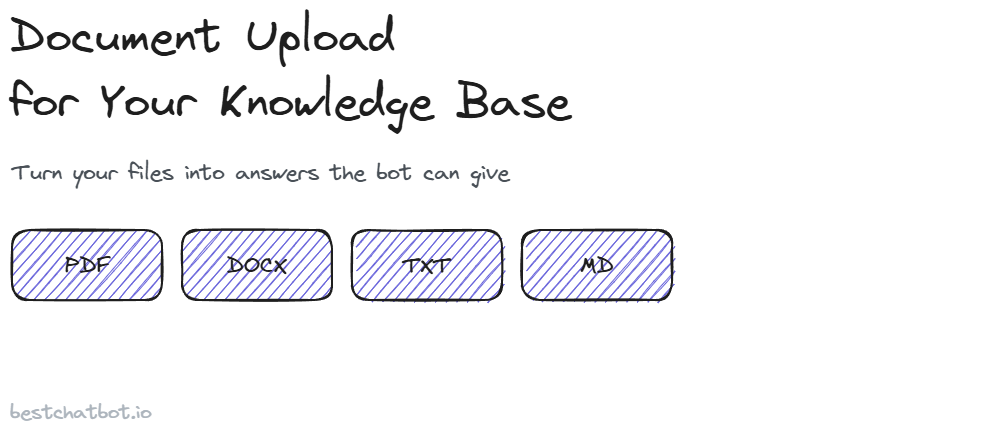
You can upload PDF, DOCX, TXT, and MD files. Four formats cover the shapes most business content already takes, which is what makes building a PDF knowledge base so quick: the files are already sitting on your drive.
PDF is the one most teams reach for first, because so much lives there already. Spec sheets, signed policies, exported reports, the welcome pack your team sends every new client. A DOCX is the working draft of the same content, the file your team edits before it ever becomes a PDF. TXT is the no-frills option for a quick note or a stripped-down FAQ. MD, plain markdown, is what a lot of technical teams write their docs in to begin with.
The bot reads the text inside each file and pulls it into the same knowledge base your other content feeds. It does not matter to the bot whether an answer started as a PDF or a paragraph you typed by hand. Once a file is in, its content is one more place the bot can look when a visitor asks.
A quick honest note on scope. Upload works on the text the document holds. A scanned image saved as a PDF, with no real text layer underneath, is a picture of words, not words, so there is nothing for the bot to read. If your files are real documents rather than photographs of paper, you are fine.
From an uploaded file to a grounded answer
Getting a file in is the easy half. The promise that matters is the second half: the bot answers from that file and does not make things up around it.
Here is how that holds in practice. You upload the document, the bot breaks it into passages and stores them in your knowledge base. When a visitor asks a question, the bot searches those passages, finds the ones that match, and writes its reply straight from them. The answer is anchored to what your file actually says, not to a general model guessing at a plausible policy. When nothing in your documents matches the question, the bot says so and declines, rather than inventing a refund window or a delivery time that was never in the file.
We think that line is what separates a support bot you can trust from one that quietly creates work. A bot that fabricates a number from a document it never read leaves your team cleaning up after it. One that answers strictly from your uploaded files, and stops when the files run out, keeps you clear of that. The mechanics behind that behavior get the full write-up in the no-hallucination approach, which is the same grounding logic applied to every reply.
When a visitor wants proof, the bot can cite the document an answer came from, so they see which file backed the reply. You toggle that on when you want the receipts visible and off when you want a plainer chat. Either way, the answer traces back to your real content.
Where upload fits next to the rest of your knowledge
An uploaded file is one input, not the whole picture. The bot pulls from three sources, and they stack.
The first is what you upload, the files this guide covers. The second is your live site: a crawl reads your public pages so the bot stays in step with what you publish, which the companion guide on training a chatbot from your website walks through. The third is manual entry, where you type an answer straight into the dashboard when it is not written down anywhere yet.
Most teams use a mix. You upload the PDFs that hold your detailed policies, crawl the site for everything you keep current on the open web, and type in the one-off answers by hand. All three feed the same knowledge base the bot answers from, and the bot treats them as one body of knowledge rather than three separate piles. If your real answers live mostly in files rather than on the site, the guide on building a chatbot from your docs goes deeper on the document path.
On top of all that, the system maps how your content connects in a knowledge graph you can see in the dashboard, so the links between your files, pages, and notes are not a black box you have to take on faith.
How to upload your documents
Setting this up is a few minutes in the dashboard, not a project with a kickoff meeting.
You open your workspace and go to the knowledge section. You pick the files and upload PDF, DOCX, TXT, or MD, and drop them in. The bot processes each one, splitting it into passages and adding them to your knowledge base. Once that finishes, the bot can answer from the new content the next time a visitor asks something the document covers.
Training the bot and putting it on your site are two separate moves. Upload teaches the bot what to say. Embedding the widget, a single snippet drop covered in the website chatbot setup guide, is what puts the bot where your visitors actually are. Do them in either order; the bot just needs both done before a visitor gets a grounded answer.
How many documents you can upload, and how large your knowledge base can grow, depend on your plan. The free tier is enough to load a handful of files and watch grounded answers come back. Bigger libraries with more documents and more frequent rebuilds sit on the higher plans. The pricing guide lays out the knowledge-base size and limits per tier.
Keeping uploaded files current is your move
Here is the honest part, the same one that applies to every knowledge source. The bot does not update a document for you. An uploaded file is a snapshot of the day you uploaded it, and it stays that way until you act.
When the underlying content changes, you refresh it. You re-upload the new version of the file, and change detection flags what actually moved so the bot replaces only the old passages instead of everything. There is no autolearning step where the bot quietly notices your policy changed and patches itself. That is deliberate, and we would rather say it plainly than promise a bot that teaches itself.
The way you catch what needs a refresh is the Response Monitor. You read what the bot actually told visitors, spot the questions where it declined or leaned on a stale document, and then re-upload or edit to close the gap. The loop stays simple: read the real conversations, find the holes, feed the bot the corrected file. When a single answer needs a small fix and re-uploading a whole document feels heavy, you can adjust it directly through manual editing instead.
FAQ
What file types can I upload to the knowledge base?
You can upload PDF, DOCX, TXT, and MD files. The bot reads the text inside each one and adds it to the same knowledge base as your crawled pages and manual notes. A scanned PDF with no real text layer has nothing to read, so use real documents rather than photographs of paper.
Does the bot answer only from my uploaded documents?
The bot answers from your knowledge base, which includes your uploaded files plus anything you crawl or type in by hand. When a question matches your documents, it replies from them and can cite the source file. When nothing matches, it declines instead of inventing an answer.
Do my uploaded documents update themselves when the content changes?
No. There is no autolearning. An uploaded file is a snapshot from the day you added it. When the content changes, you re-upload the new version and the bot replaces the old passages, or you fix a single answer through manual editing. You catch what needs updating in the Response Monitor.
Can I upload documents and crawl my website at the same time?
Yes. Document upload, a website crawl, and manual entry all feed one knowledge base. The bot treats an uploaded PDF and a crawled page as the same body of knowledge and answers from whichever holds the match, so you can build from files and your site together.
Is there a limit on how many documents I can upload?
Yes, and it depends on your plan. The free tier covers a small set of files so you can see grounded answers in action. Larger document libraries and more frequent rebuilds sit on the higher plans. The pricing guide lists the knowledge-base size and document limits per tier.
Ready to set up document upload for your knowledge base? Start in the knowledge base to load your first files, then check the pricing guide for the document limits on each plan.