
Freshdesk Ticketing Integration
Connect Freshdesk to your support widget so the AI agent creates a ticket when a question needs your team. Setup, identity rules, and ticket fields.
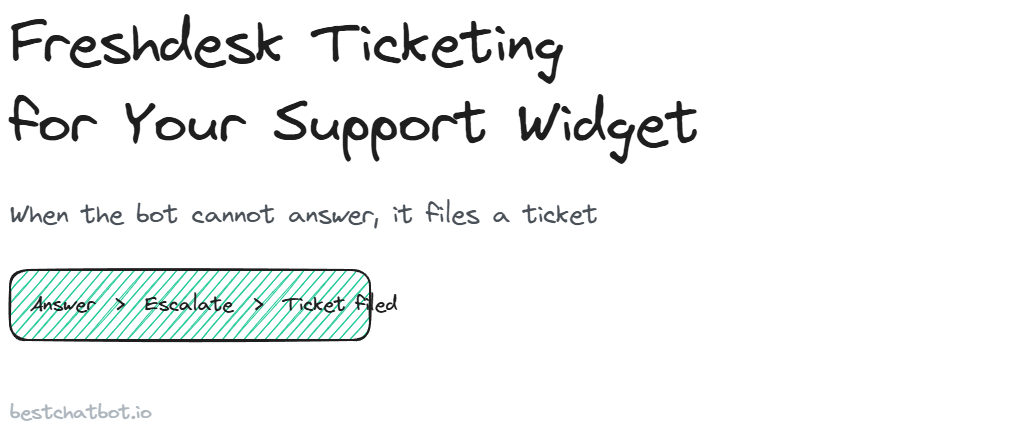
Most chat widgets stop at the point where they actually need to help. The visitor asks something the bot cannot answer from your content, and the conversation dead-ends with a polite "please email support." The visitor copies the question, opens a new tab, fills out a form, and repeats everything they already typed. A Freshdesk ticketing connection closes that gap. When a question falls outside what the bot knows, or when the visitor explicitly asks for a human, the Freshdesk chatbot opens a ticket in your inbox with the conversation already attached. No second tab, no retyping, no lost context.
This page covers what the connection does, how to set it up, how the agent decides when to create Freshdesk tickets, and what lands in the ticket itself. The widget is a web widget, so everything here happens inside the same chat the visitor is already using. There is no separate app to install and no live agent waiting in the wings. Support escalation means a ticket gets filed, and your team picks it up in Freshdesk the same way they handle every other request.
What the Freshdesk connection does
The connection gives the AI agent one specific power: it can file a support ticket on the visitor's behalf. That sounds small, but it changes the shape of the whole conversation. Instead of answering until it runs out of road, the agent has a clean exit that hands the request to your team with everything they need to act.
Here is the division of labor. The bot still answers from your knowledge base first, and it declines when a question falls outside that knowledge rather than inventing an answer. Ticket creation is the fallback, not the default. We built it this way on purpose, because a bot that opens a ticket for every message is just a slower contact form. The agent only reaches for the Freshdesk connector when answering is not the right move: the knowledge base has no grounded answer, the issue is account-specific, or the visitor asks to talk to a person.
Freshdesk is one of two support connectors, and you pick one. A workspace connects either Freshdesk or Zendesk, never both at once. They serve the same role in the action library, so running both would just split your tickets across two inboxes. If your team already lives in Freshdesk, this is the connector you want. If you are weighing the two, the deciding factor is wherever your agents already work, because the connection routes tickets into that existing queue rather than creating a parallel one.
How to set up the connection
Setup happens in the dashboard and takes a few minutes. You are connecting an account and choosing a few defaults, not writing code. Ticket creation is an agentic action, so it runs on the Pro and Business tiers. On Free and Starter the widget still answers from your knowledge base, it just does not file tickets.
Step 1: Open the connectors panel
In the dashboard, go to the workspace where your widget lives and open the connectors panel. Support sits in its own category alongside scheduling, CRM, payments, and e-commerce. Pick the Freshdesk connector from the support slot. If Zendesk is already connected in that slot, you will swap it here, since a workspace runs one support tool at a time.
Step 2: Authorize the connection
Authorize Freshdesk with an API key or OAuth, depending on what your Freshdesk plan exposes. BestChatBot never holds those credentials directly. A specialized credentials provider stores them encrypted and refreshes tokens when they expire, so your secrets never sit in our database in plain form. You grant the access, the provider keeps it sealed, and the agent calls Freshdesk through that secured connection.
Step 3: Set ticket defaults
Choose the defaults the agent will apply to every ticket it opens: the group or queue tickets land in, a default priority, and an optional tag so AI-filed tickets are easy to spot in Freshdesk. These defaults keep new tickets consistent and routed to the right team without the visitor having to know your internal structure.
Step 4: Test it from the widget
Open your live widget and ask something the bot cannot answer, or type "I want to talk to someone." The agent should offer to file a ticket, confirm the details, and create it. Check Freshdesk: the new ticket carries the conversation transcript, the visitor's contact details, and your default group and priority. Once that round trip works, the connection is live.
When the agent files a ticket
The agent does not open a ticket whenever it feels stuck. It follows clear triggers, and grounding comes first. If the answer exists in your knowledge base, the visitor gets the answer, with sources if you have citations turned on. Ticket creation kicks in only when answering is genuinely not the right call.
Three situations trigger a ticket. The first is an out-of-scope question: the knowledge base has nothing grounded to say, so rather than guess, the agent offers to escalate. The second is an account-specific request that needs human judgment or access the bot does not have, like a refund decision or a billing dispute. The third is the simplest one: the visitor asks for a person. When someone says "can I talk to a human," the agent does not argue. It confirms a few details and files the ticket.
This is what support escalation means in a web-widget product. There is no live human standing by in the chat, and we do not pretend otherwise. Escalation routes the request into your team's Freshdesk inbox, where a real person reads it and replies through Freshdesk's normal workflow. The visitor gets a clear "your request is with the team" message instead of a fake "connecting you now" that leads nowhere.
Identity, ticket fields, and what lands in Freshdesk
A ticket is only useful if your team can act on it, which means it needs to be tied to a real person. Customer-specific actions are identity-gated. To file a ticket on a known customer's behalf, the visitor needs a verified identity, a signed token your site passes to the widget. With that token, the agent pins the email and name from the verified identity instead of trusting whatever the visitor types into the chat. Nobody opens a ticket as someone else.
When no verified identity is present, the agent does not silently degrade or guess. It takes the anonymous path: it collects an email address in the conversation and files the ticket against that, clearly marked as unverified. The request still reaches your team, but it is never attributed to a verified account it cannot prove.
Here is what a filed ticket carries into Freshdesk:
| Ticket field | Where it comes from |
|---|---|
| Subject | A short summary the agent writes from the conversation |
| Description | The full chat transcript, so your team has the whole context |
| Requester email and name | Pinned from the verified identity, or collected on the anonymous path |
| Group or queue | Your default from setup, so it routes to the right team |
| Priority | Your default, adjustable per ticket later in Freshdesk |
| Tag | Optional marker so AI-filed tickets are easy to filter |
Because the transcript travels with the ticket, your agent opens it already knowing what the visitor asked and what the bot tried. That is the difference between a handoff that saves time and one that just moves the problem. The visitor never restates their issue, and the human picks up exactly where the bot left off.
FAQ
Can I connect both Freshdesk and Zendesk?
No. A workspace uses one support connector at a time, either Freshdesk or Zendesk. They fill the same role, so the dashboard lets you pick one and swap if you change tools. This keeps every escalated request landing in a single inbox instead of being split across two systems.
Does ticket creation work on every plan?
No. Filing tickets is an agentic action, available on Pro and Business. On Free and Starter the widget still answers from your knowledge base and declines when it cannot, it just does not open Freshdesk tickets. You can compare what each tier includes on the pricing guide.
Where are my Freshdesk credentials stored?
Not with us directly. A specialized credentials provider stores them encrypted and refreshes tokens automatically. BestChatBot calls Freshdesk through that secured connection, so your API key or OAuth token never sits in our database in plain form.
What happens if the visitor is not signed in?
The agent uses the anonymous path. It collects an email in the conversation and files the ticket against that, marked as unverified. It never attributes a ticket to a verified account it cannot confirm, because customer-specific actions are gated behind a verified identity.
Does the bot reply to tickets after they are created?
No. Once a ticket is filed, it lives in Freshdesk and your team handles it through Freshdesk's normal workflow. The agent's job is to create a clean, well-attributed ticket with the full conversation attached, then step back.
For a full picture of what the agent can and cannot do across every connector, start with the AI support integrations hub, or see how ticket creation actions fit into the wider action library. If you would rather have the bot answer from your existing help docs before it ever needs to escalate, the help center chatbot connection is the place to start.