
Help Center Chatbot Integration
Help center chatbot integration syncs your existing articles into the bot's knowledge base. 3 sync methods, refresh cadence, and how to verify indexing.
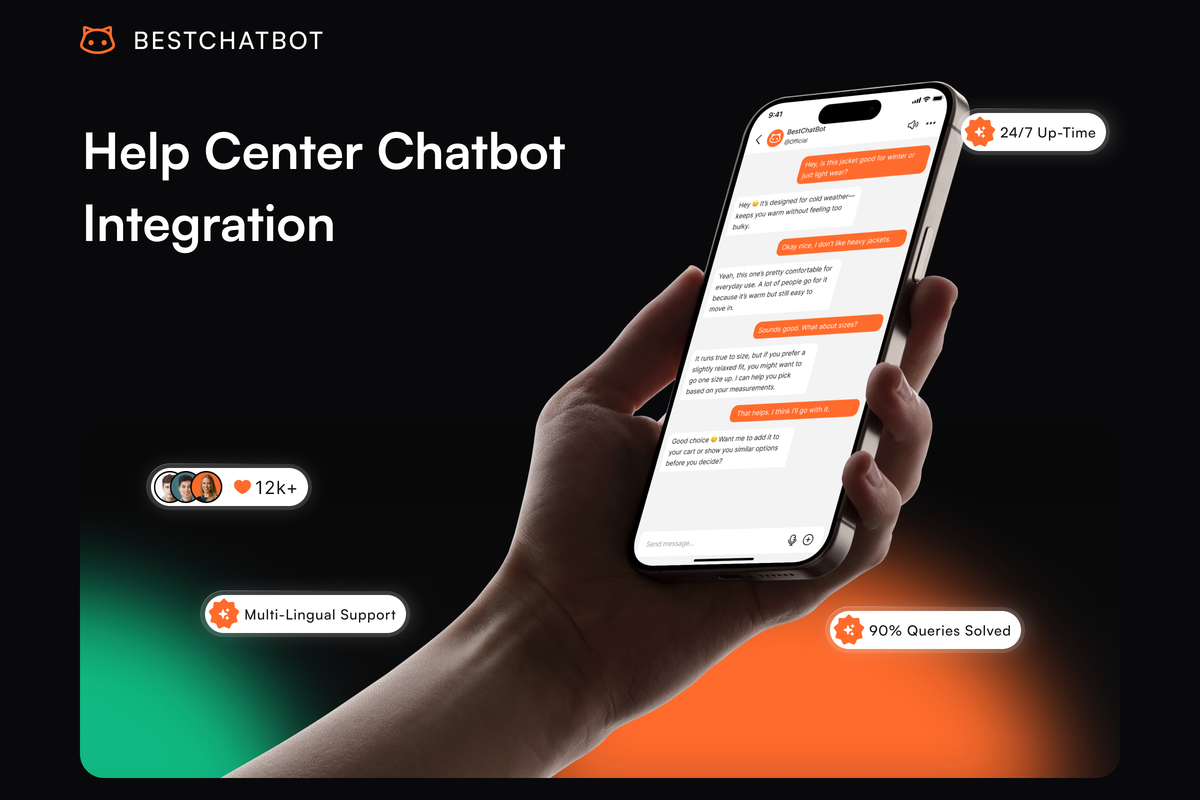
A help center chatbot integration connects your existing help center to the support widget so the bot answers from the articles you have already written. Instead of re-uploading content or maintaining a separate knowledge base, the bot syncs directly from your help center and stays current as you publish and edit articles. This page covers the 3 sync methods (native connection, sitemap scraping, manual export), how to set up the refresh cadence, and how to verify your content is indexed correctly.
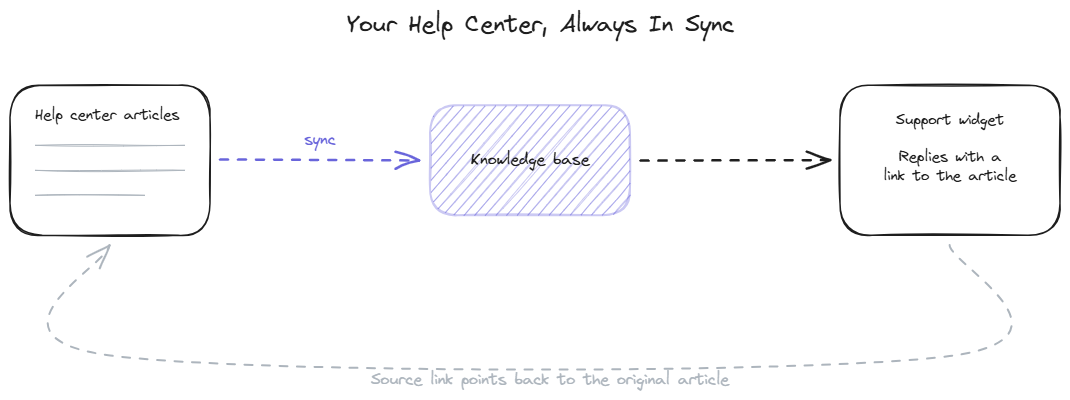
What the help center connection does
The connection makes your help center the source of truth for the bot's answers. When a visitor asks a question, the widget retrieves the relevant passage from your synced help center content and generates an answer grounded in it. The advantage over manual upload is that the content stays in sync automatically: edit an article in your help center, and the bot's answers reflect the change within minutes to hours depending on the refresh cadence.
This matters because help center content changes constantly. Articles get updated when features ship, when policies change, when pricing shifts. A bot synced to the help center inherits those changes without anyone re-uploading anything. A bot fed by a one-time manual upload goes stale the moment the help center moves ahead of it.
The connection is read-only. The bot pulls content from the help center; it never writes back. Your help center remains the single place where content is authored and edited, and the bot is a downstream consumer of that content. For the architectural side of how synced content becomes retrievable answers, the documentation chatbot page covers the ingestion and retrieval pipeline.
Step 1: Choose your sync method
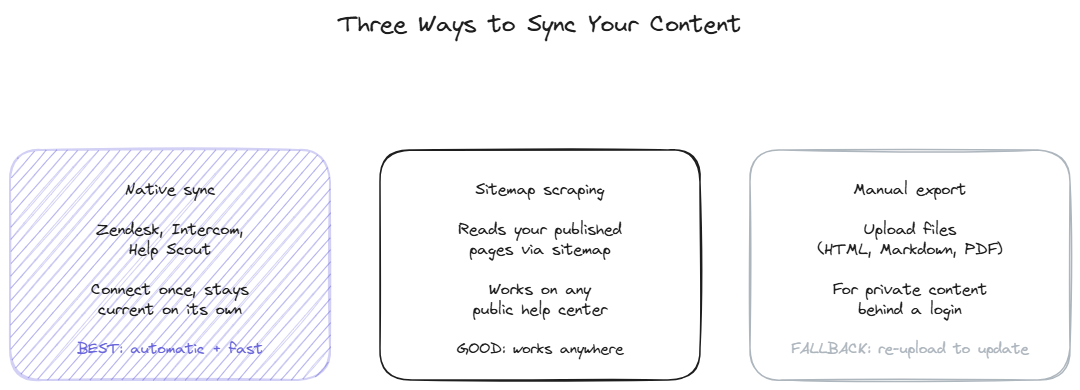
The right method depends on which help center platform you use.
Native API sync is the best option when available. Platforms like Zendesk Guide, Intercom Articles, and HelpScout Docs expose APIs that the widget connects to directly. The widget pulls articles through the API, detects changes automatically, and re-syncs on a schedule or on webhook triggers. This is the lowest-maintenance method: connect once, and the content stays current without further action.
Sitemap scraping is the universal fallback. If your help center is published as web pages with a sitemap (most are), the widget can scrape the content by following the sitemap. This works on any platform regardless of whether it has an API, including custom-built help centers, GitBook, Docusaurus, Notion-published sites, and static documentation generators. Slightly higher latency on detecting changes than native sync, but covers everything native sync does not.
Manual export is the last resort. Export your help center content as files (HTML, Markdown, PDF) and upload them to the widget's knowledge base. This works when the help center is neither API-accessible nor publicly crawlable (for example, an internal-only help center behind authentication). The downside is that manual export requires re-uploading whenever content changes, so it suits stable content better than fast-moving content.
Step 2: Connect the help center
For native sync, open the admin panel, find your help center platform in the available connections, and authenticate. Zendesk and Intercom use OAuth; others may use an API key you generate in the help center's developer settings. Once authenticated, select which article categories or collections to sync (you may not want every internal article in the bot's knowledge base) and save.
For sitemap scraping, paste your help center's sitemap URL (usually at /sitemap.xml or linked from the help center root) into the admin. The widget crawls the sitemap, lists the pages it found, and lets you include or exclude specific sections. Confirm the selection and save.
For manual export, export the content from your help center, then upload the files through the admin's upload interface. Group related files and tag them by topic if the admin supports it.
After the connection saves, the initial sync runs. Depending on the number of articles, this takes anywhere from under a minute (a few dozen articles) to several minutes (hundreds of articles). The admin shows sync progress and flags any articles that failed to index.
Step 3: Configure the refresh cadence
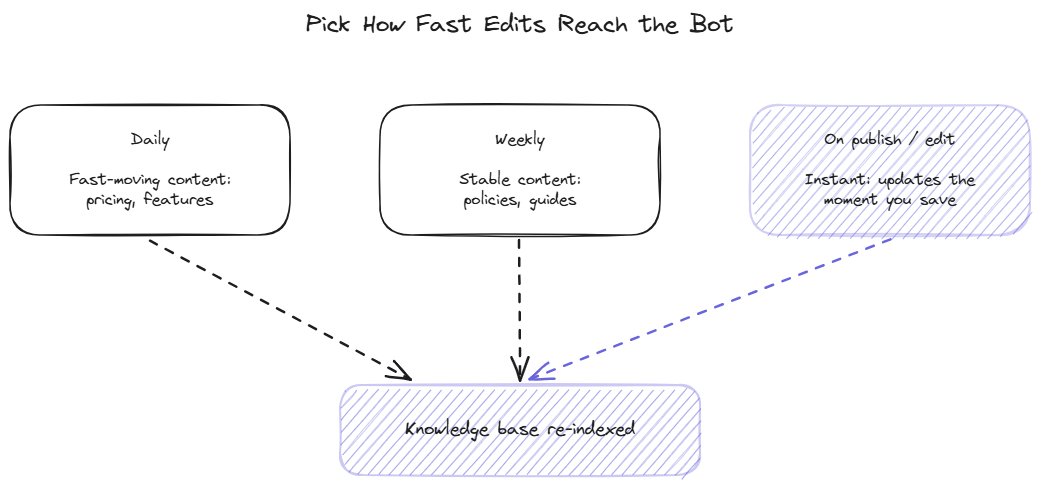
The refresh cadence determines how quickly help center edits propagate to the bot. Three options, often used in combination.
Scheduled daily refresh suits fast-moving content: pricing pages, feature documentation, anything that changes weekly or more often. The widget re-checks the source daily and re-indexes anything that changed.
Scheduled weekly refresh suits stable content: policy documents, foundational guides, anything that changes rarely. Less frequent re-checking saves processing without risking stale answers, because the content rarely moves.
Webhook-triggered refresh is the cleanest where supported. When an article is published or edited in the help center, the platform fires a webhook that triggers the widget to re-index that specific article immediately. This requires that your help center platform supports outbound webhooks and that you configure the webhook endpoint in both systems. The result is near-instant propagation.
Most teams set a daily scheduled refresh as a baseline and add webhook triggers for the platforms that support them. The goal is keeping the lag between a help center edit and the bot reflecting it under a day for stable content and under an hour for fast-moving content.
Step 4: Verify content is indexed
After the initial sync, confirm the content actually made it into the knowledge base and produces correct answers.
Check the indexed article count in the admin against the number of articles you expected to sync. A large discrepancy means some articles failed to index, usually because of formatting issues, access restrictions, or sitemap gaps. The admin lists the failures with reasons.
Run a few test questions whose answers live in specific help center articles. The widget should answer from the synced content and, where citations are surfaced, link back to the correct article. If the widget says "I don't have that information" for a question clearly covered by a synced article, the article either failed to index or was chunked poorly.
Spot-check a recently edited article. Edit an article in your help center, wait for the refresh cadence (or trigger a manual re-sync), and confirm the bot's answer reflects the edit. This verifies the sync loop end to end, not just the initial import.
BestChatBot's admin shows per-article index status and surfaces sync failures with the specific reason, so verifying a help center connection takes a few minutes rather than requiring manual spot-checks across hundreds of articles. For the training side of turning synced content into well-performing answers, the knowledge setup page covers content structuring and testing.
FAQ
- Which help center platforms have native sync? Native API sync is available for major platforms including Zendesk Guide, Intercom Articles, and HelpScout Docs. Platforms without native sync are covered by sitemap scraping, which works on any publicly accessible help center including GitBook, Docusaurus, custom sites, and Notion-published documentation.
- What if my help center is behind a login? If the content is not publicly accessible, sitemap scraping cannot reach it. Use native API sync if your platform supports authenticated API access, or fall back to manual export for content that cannot be accessed any other way.
- How does the bot handle articles that contradict each other? The bot retrieves whichever passage scores higher on relevance, which can produce inconsistent answers if two articles disagree. The fix is upstream: resolve the contradiction in the help center. The admin's retrieval logs help identify which articles are conflicting.
- Can I sync only part of my help center? Yes. During connection setup, you select which categories, collections, or sitemap sections to include. Internal-only articles, draft content, or sections not relevant to support questions can be excluded.
Does syncing duplicate my content or move it? Neither. The sync creates an indexed copy in the bot's knowledge base for retrieval purposes. Your help center remains the authoritative source where content is authored and edited; the bot is a read-only downstream consumer. For pricing details, see plans.